
Managing squad members
This article covers what organisers (owners and admins) can do to manage squad members, both for a specific activity and for their squad membership as a whole.
Activity-specific actions
These actions apply to someone's place in a specific activity, rather than to the squad as a whole. You'll find a three-dot menu next to each member's name with the relevant actions for their current status for each activity.
When you create an activity we'll automatically send invitations to your squad, tracking members' replies – In, Out, or No response – as they come in, to determine the activity-specific actions you can take. You can view responses by going to your Squad and choosing the activity from the Activity tab.
Mark In or Out
You can mark a member In or Out manually via the three-dot menu – useful if someone gives you their answer outside of Squaddle after invites have already gone out.
This will secure their place or add them to the reserves list in chronological order – as if their response was sent via Squaddle at the moment you manually log their response. If you mark somebody out who'd previously marked themselves in, their place will be offered to reserves according to your squad rules. See Managing reserves for more information.
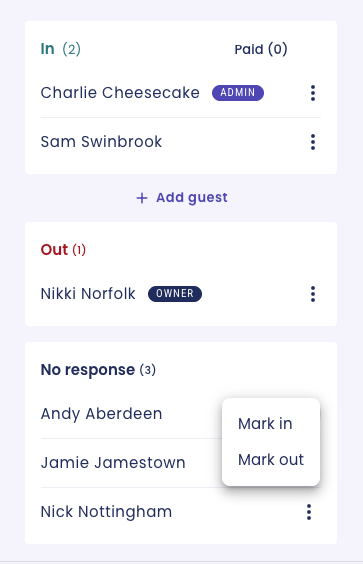
Note that marking a member in manually is different from being 'marked in automatically', which is a setting chosen when creating or editing an activity, and is applied before invites go out.
Mark as paid
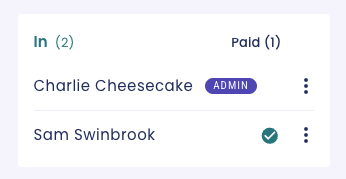
For members marked in, you can mark them as paid from the three-dot menu. This is useful for members who pay in cash on the night, or if you need to waive a debt. See Managing outstanding payments and refunds for more information.
You'll see a green tick appear against their name, and a count under the list of Paid members. The Outstanding payment will be removed from their account, if applicable.
Unmark as paid
If you've marked a member as paid by mistake, or need to reverse the action, use 'Unmark as paid' from the three-dot menu. This is only available for members whose payment status was changed manually – you won't find this option for members who made payments themselves through Squaddle.
Mark as no-show
Marking a member as a no-show adds a label for your own records. It doesn't affect payments or refunds at all.
Add a guest to activities
Tap '+ Add guest' below the list of members marked in to add a guest for a specific activity. This allocates a spot to someone without a Squaddle account – for example, a friend visiting for the day. It's as simple as entering their name.
If a guest wants to receive notifications about this or future activities, invite them to join the squad instead – they'll automatically be invited to any upcoming activities once they accept.
Can guests pay through Squaddle?
Guests can't pay through Squaddle, since we don't have their contact details to send them a payment link. You can mark them as paid manually if you're collecting funds outside Squaddle, or invite them to the squad as above so they can pay like any other member.
Select teams
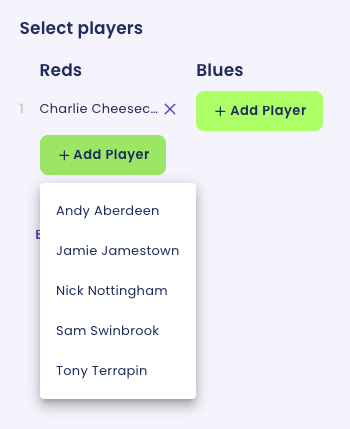
Tap 'Select teams' to split members who are marked in into two groups – for example, to Reds and Blues to specify which colour tops people need to wear, or Starters and Subs (if you're selecting a team for a competitive game).
Members are notified which team they're in.
Squad membership actions
These actions apply to someone's place in the squad generally, rather than to a specific activity. You can find most actions by going to your Squad and choosing the Squad tab, and tapping the three-dot menu next to a member's name.
Note that Admins can give and revoke admin rights to other members, but cannot modify the status of the account owner in any way. Admins simply won't see a three-dot menu next to the squad owner, since there aren't any available actions.
Give or revoke admin rights
Squad owners and admins can appoint another member to share responsibility for managing a squad. Admins have broadly the same permissions as owners, with the exception of withdrawing funds. See Appointing a squad admin for more information.
Pause membership
Pausing a squad membership temporarily stops Squaddle from sending invites for upcoming activities to members who aren't likely to play for a while – for example if they're injured or away.
This action applies immediately, so paused members will lose their spot in any upcoming activities regardless of their status even if they've paid. If applicable, paused members will appear with the status 'Left' on upcoming activities, and their spot will be released.
You'll still be able to see paused members in your squad list, with the status 'Paused'.
Remove from squad
Removing a member from a squad stops them receiving any further notifications, and can't be undone. If you just want to stop inviting them for a while rather than remove them permanently, consider pausing their membership instead.
If a member has outstanding payments, these stay on their account until paid, unless you waive the debt by marking them as paid manually.
If someone wants to rejoin a squad they've left or been removed from, you'll need to send them a new invite. They'll start receiving activity invites once they've accepted it.
Can I change a member's contact details on their behalf, or change how they receive notifications?
No – members need to update their own email or telephone number they use with Squaddle by logging into their account. They can also change their notification settings there. See Managing your profile and notifications.